A slow laptop affects daily work, online classes, browsing, and multitasking. We usually face lag, long boot times, freezing apps, or delayed responses after months of use. This problem is common on both Windows 10 and Windows 11 laptops.
Fixing a slow laptop means identifying and removing system bottlenecks that reduce performance. This includes optimizing startup programs, power settings, storage usage, and background processes to restore normal speed and responsiveness. So, how to fix slow laptop?
Key Takeaways
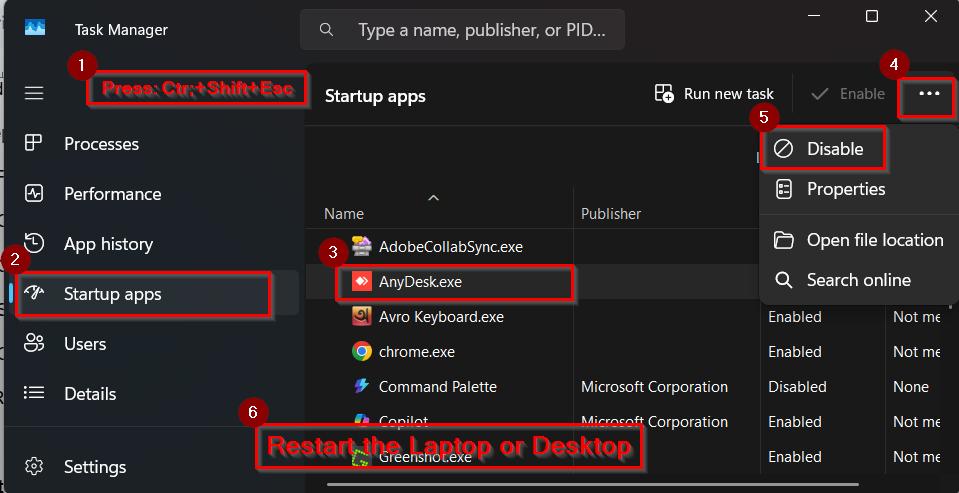
To fix a slow laptop or make your old laptop faster, follow these steps:
- Press Ctrl + Shift + Esc to open the Task Manager. Click the Startup tab at the top.
- Select a non-essential program such as game launchers or update tools.
- Click Disable in the bottom-right corner.
- Restart the laptop to apply changes.
In this article, you will learn how to fix slow laptop performance using 10 easy methods with image tutorial. Let’s start-
In This Post......
- Method 1: Disable Unnecessary Startup Programs
- Method 2: Free Up Disk Space Using Disk Cleanup
- Method 5: Update Operating System and Drivers
- Method 6: Upgrade HDD to SSD for Maximum Speed Boost
- Method 7: Optimize Power Settings for High Performance
- Method 8: Disable Heavy Background Services and Processes
- Method 9: Clean Install Windows for System Reset
- Method 10: Reduce Thermal Throttling by Cleaning and Repasting
- Frequently Asked Questions (FAQs)
- Concluding Words
Method 1: Disable Unnecessary Startup Programs
Our laptop or desktop often contains unnecessary startup programs which we usually don’t use. Disable Unnecessary Startup Programs is a method that stops non-essential applications from launching automatically when the laptop boots. This method works in the context of boot-time performance and background resource usage. It is more effective than general cleanup because it directly reduces startup load. We use this approach when a laptop is slow immediately after turning on.
However, a common question always comes up in your mind: How to fix slow laptop HP, Acer, or Lenovo?
Don’t worry! I am here to get you the perfect solution.
To disable the unnecessary startup programs, follow these steps:
Steps:
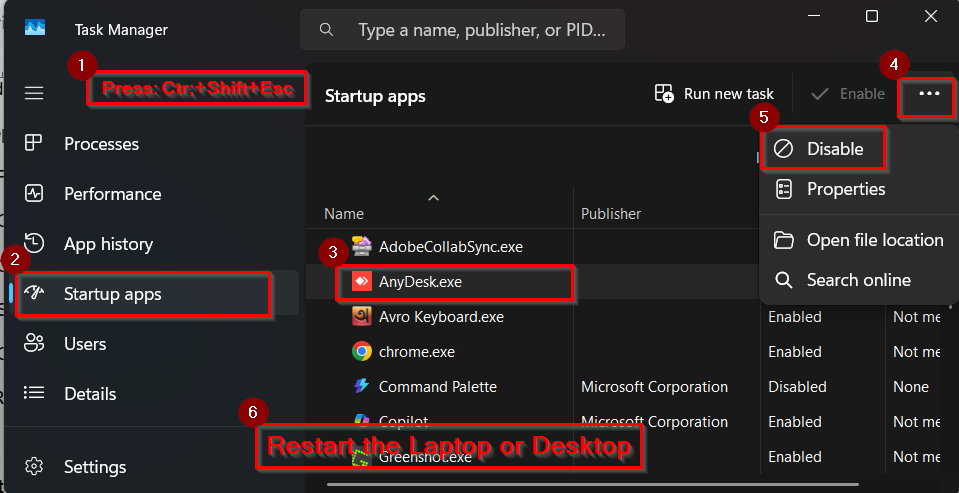
- Press Ctrl + Shift + Esc to open the Task Manager. Click More details if needed.
- Click the Startup tab at the top.
- Check the Startup impact column to identify High impact apps.
- Select a non-essential program such as game launchers or update tools. For example, AnyDesk is a non-essential program. Click on it.
- Click Disable in the bottom-right corner.
- Restart the laptop to apply changes.
Note:
- Do not disable antivirus or system drivers
- Changes can be reversed anytime
To know more about disable startup program, read this details post: How to Disable Startup Programs in Windows.
Method 2: Free Up Disk Space Using Disk Cleanup
Free Up Disk Space is another way to remove temporary files, cache, and unused system data. This approach works in the context of storage performance and disk read/write speed. It is more effective than manual deletion because it safely removes system-recognized junk files. We usually use this when the system drive is almost full.
So, how to fix slow laptop window 11? You can easily reduce lag by cleaning up the disk.
To free up space using disk cleanup, follow these steps:
Steps:
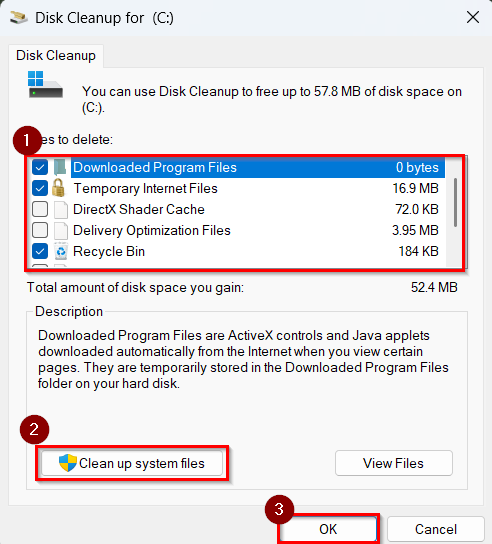
➤ Press Windows + S.
➤ Type Disk Cleanup, and open it.
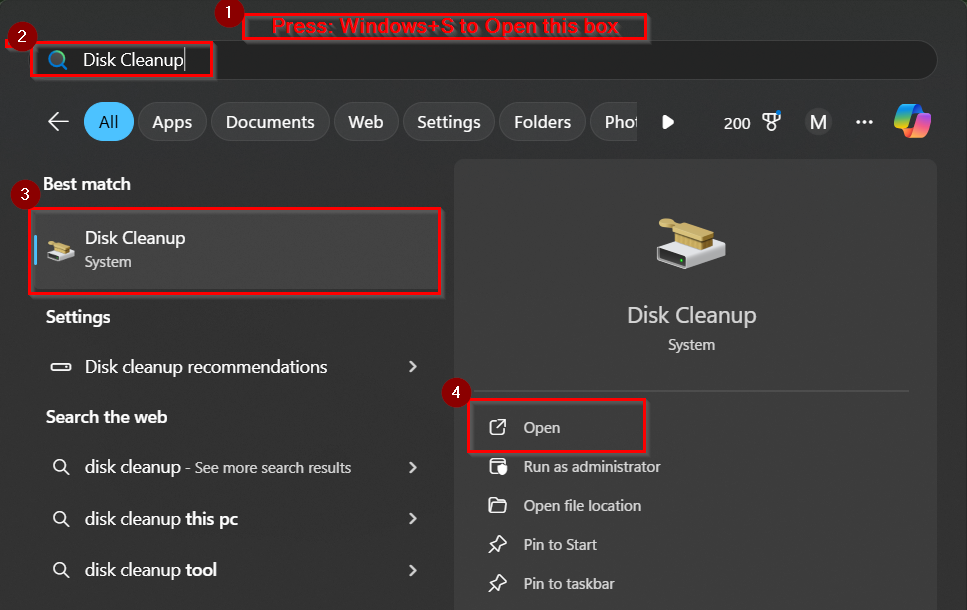
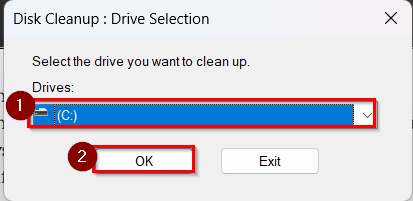
➤ Select Drive C: and click OK.
➤ Check boxes such as Temporary files, Recycle Bin, and System cache.
➤ Click Clean up system files for deeper cleanup.
➤ Click OK and confirm deletion.
Note:
- Avoid deleting Downloads unless reviewed
- System cleanup may take several minutes
To know more about free up disk space, read this details post: How to Free Up Disk Space in Windows 11.
Method 3: Upgrade RAM for Better Multitasking
Upgrade RAM for Better Multitasking is a hardware-based method that increases the laptop’s memory capacity. This approach works in the context of multitasking and application performance. It is more effective than software tweaks when memory usage is consistently high. We usually use this when the laptop slows down with multiple apps open.
So, how to fix slow laptop windows 10? Simple, if possible, just change the Ram for better multitasking.
To upgrade Ram for better multitasking, follow these steps-
Steps:
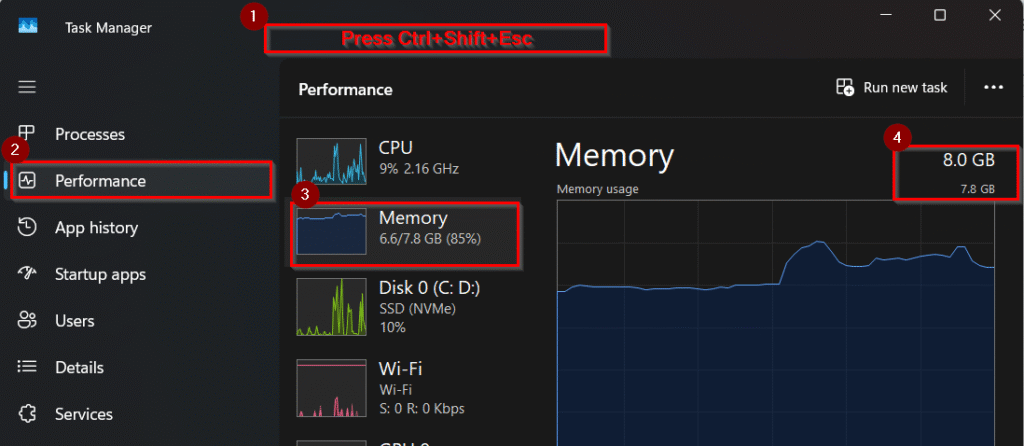
➤ Press Ctrl + Shift + Esc and open Task Manager.
➤ Click the Performance tab and select Memory.
➤ Check Used Slots and RAM capacity.
➤ Purchase compatible RAM based on DDR type and speed.
➤ Install RAM or consult a technician if unsure.
Note:
- RAM upgrade compatibility varies by model
- SSD upgrade may also help if RAM is sufficient
Method 4: Scan and Remove Malware or Viruses
Scan and Remove Malware or Viruses is a security approach that eliminates harmful software slowing down system performance. This approach works in the context of background threats and unauthorized resource usage. It is more effective than performance tuning when unknown processes consume CPU. We usually use this when the laptop overheats or behaves unusually.
To Scan and Remove Malware or Viruses, follow these steps-
Steps:
➤ Step 1: Press Windows + I and open Windows Security.
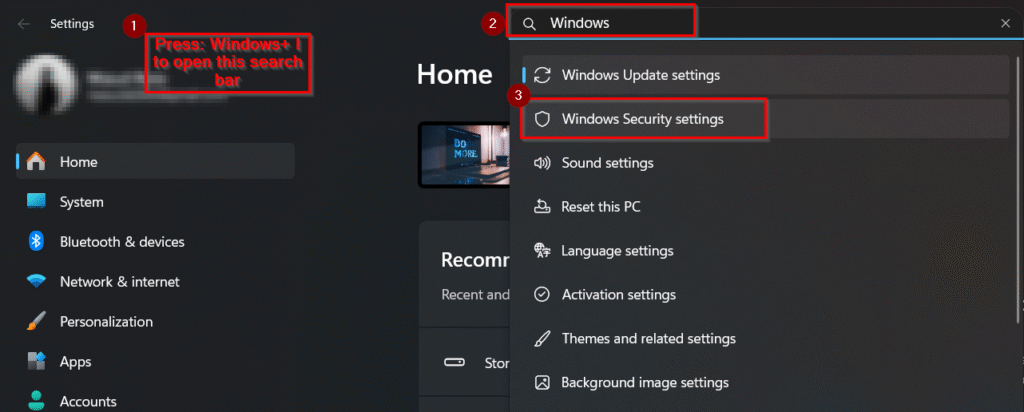
➤ Step 2: Click Virus & threat protection.
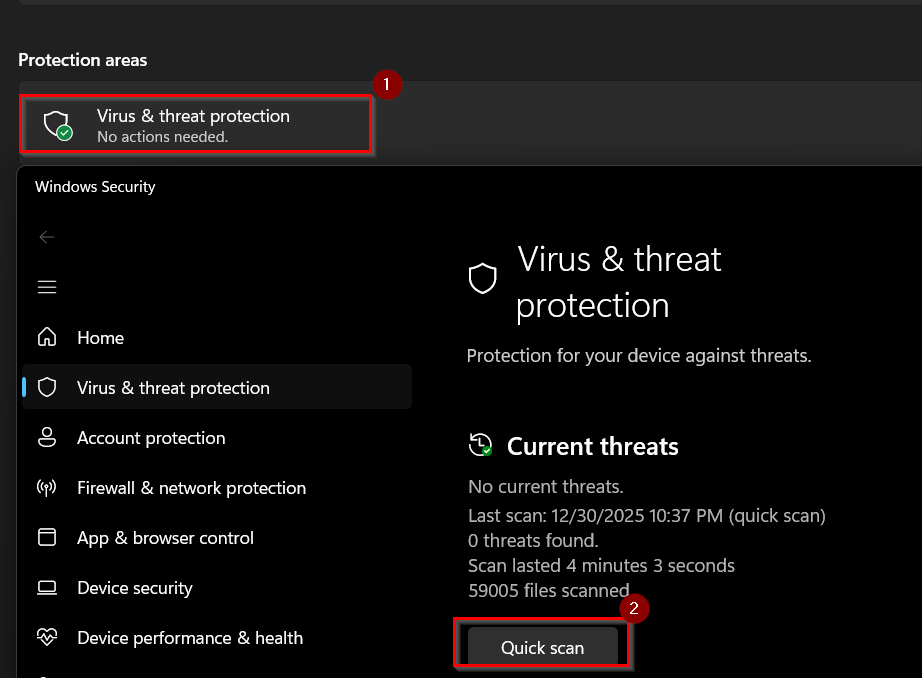
➤ Step 3: Select Scan options and choose Full scan.
➤ Step 4: Click Scan now and wait for completion.
➤ Step 5: Remove or quarantine detected threats.
Note:
- Keep antivirus updated
- Avoid installing unknown software
Method 5: Update Operating System and Drivers
Update Operating System and Drivers is a maintenance approach that ensures compatibility and performance optimization. This method works in the context of system stability and bug fixes. It is more effective than manual tweaks because updates include official performance improvements. This method is good when the laptop feels sluggish after long-term use.
To update the operating system and drivers, follow these steps-
Steps:
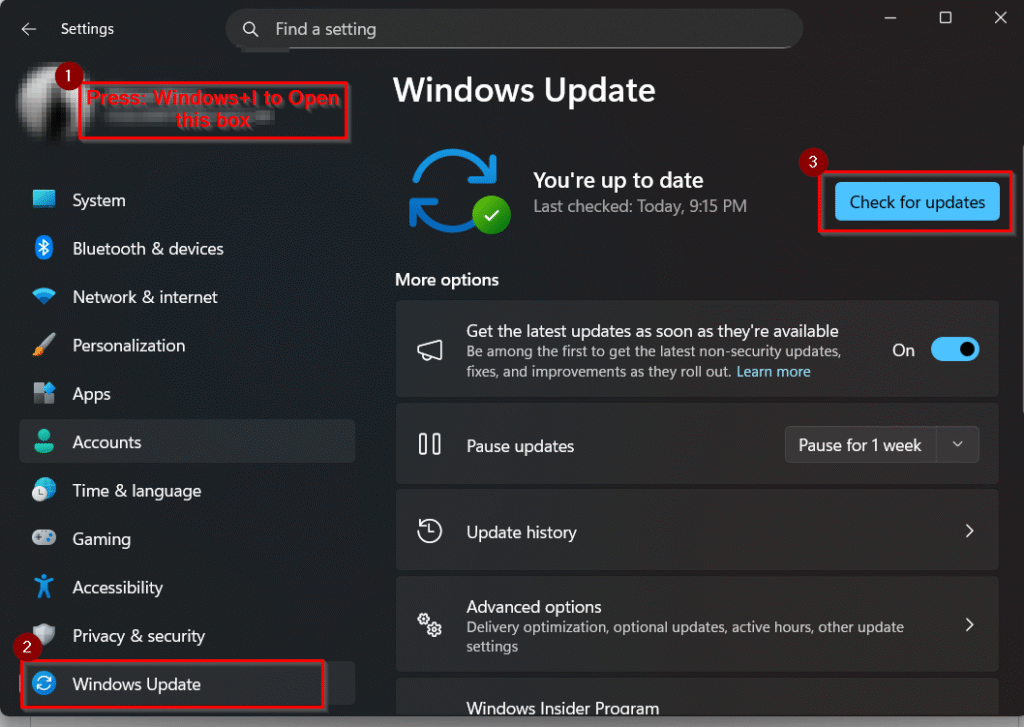
➤Press Windows + I to open Settings.
➤Click Windows Update.
➤ Click Check for updates.
➤ Install available updates and drivers.
➤ Restart the laptop after installation.
Note:
- Backup important files before updates
- Driver updates improve hardware efficiency
Method 6: Upgrade HDD to SSD for Maximum Speed Boost
Upgrade HDD to SSD for Maximum Speed Boost is a hardware optimization method that replaces a traditional hard disk drive with a solid-state drive. This is good in the context of storage read/write speed and system responsiveness. It is more effective than RAM or software tweaks because storage speed affects boot time, app loading, and file access. We usually use this approach when a laptop takes a long time to boot or open programs.
Steps:
➤ Press Ctrl + Shift + Esc, open Task Manager, and go to the Performance tab.
➤ Click Disk 0 and check whether it shows HDD or SSD.
➤ Purchase a compatible 2.5-inch SATA SSD or NVMe SSD based on your laptop model.
➤ Clone existing data or perform a fresh OS installation on the SSD.
➤ Replace the HDD with the SSD or install via NVMe slot.
➤ Boot the laptop and confirm faster startup and load times.
Note:
- SSD upgrade provides the single biggest speed improvement
- Professional help is recommended for beginners
Method 7: Optimize Power Settings for High Performance
Optimize Power Settings for High Performance is a system-level method that removes CPU and GPU power limits. It is more effective than background cleanup because it directly unlocks hardware performance. We use this approach when laptops feel slow while plugged in.
Steps:
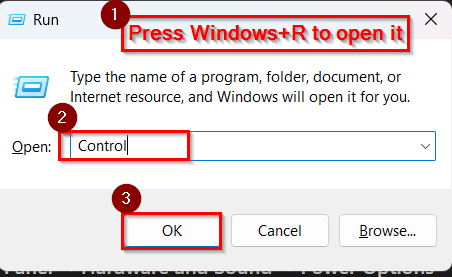
➤ Press Windows + R, type control, and press Enter.
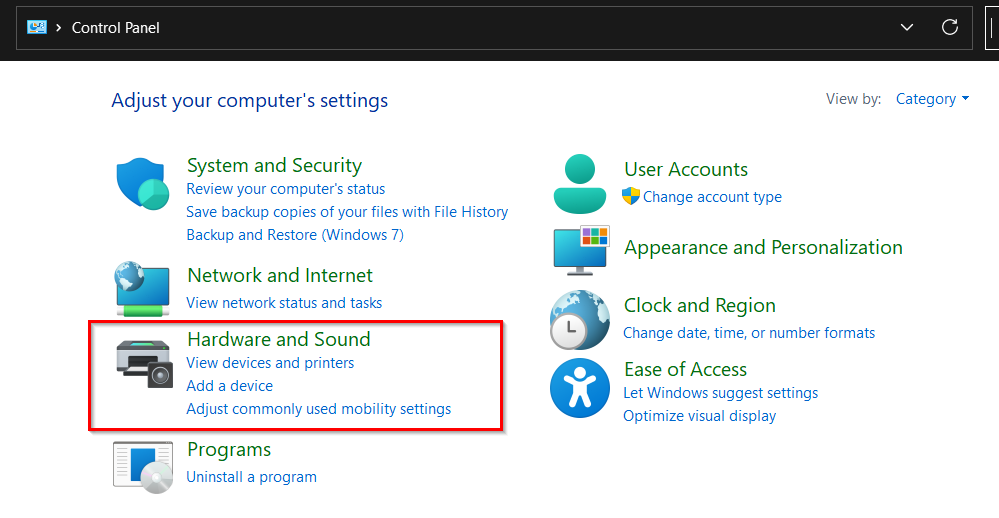
➤ Click Hardware and Sound.
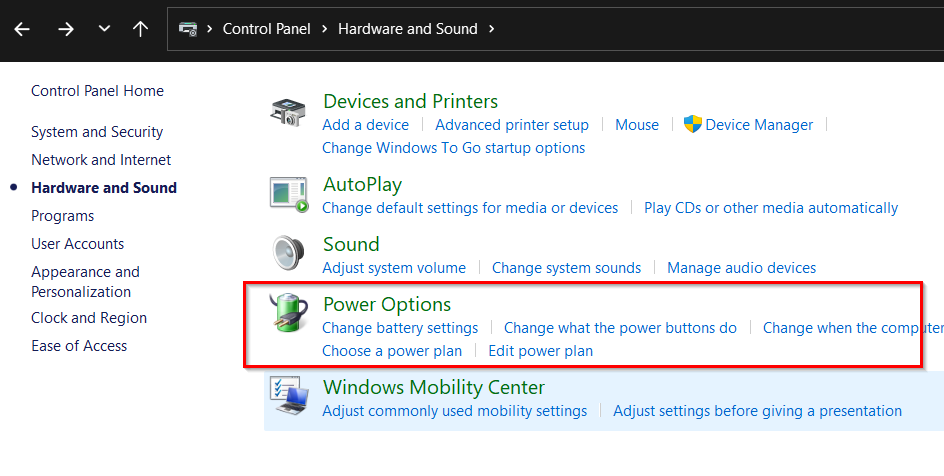
➤ Click Power Options.
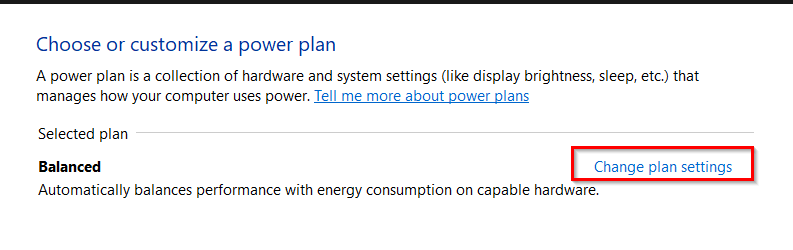
➤ Click Change plan settings
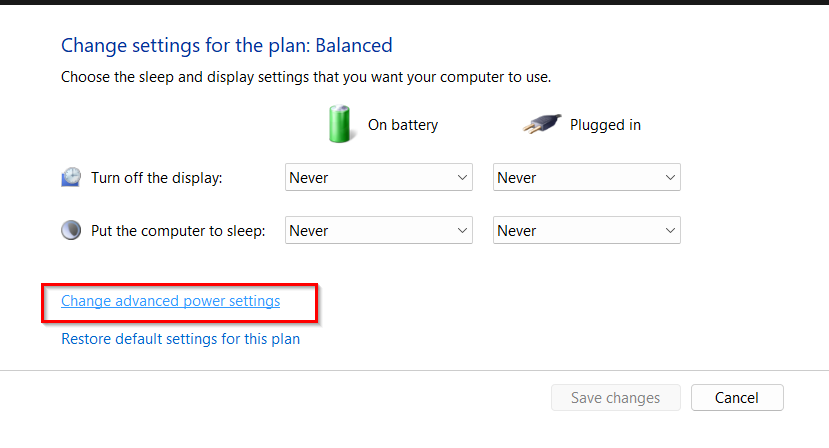
➤ Click on advanced power settings.
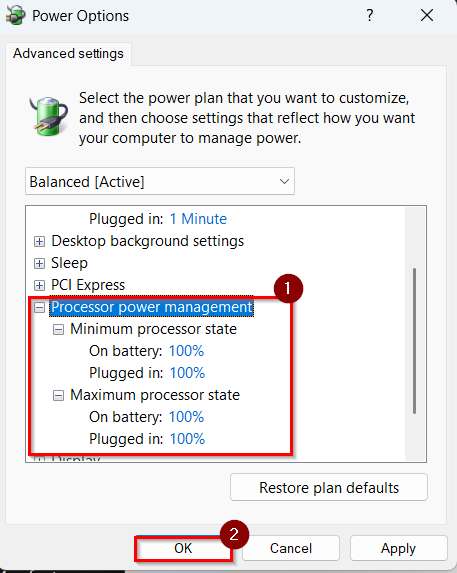
➤ Set Processor power management → Minimum and Maximum to 100%.
Note:
- Battery drains faster in high-performance mode
- Best used while charging
Method 8: Disable Heavy Background Services and Processes
Disable Heavy Background Services and Processes is an advanced optimization method that reduces unnecessary system-level services. This approach is more effective than startup disabling because it controls services running continuously. This is good when CPU usage stays high at idle.
However, you may think that how to fix slow laptop startup? Or, How do I fix a slow Laptop?
You can easily fix the lagging laptop by disabling the heavy background services and processes. To do it, follow these steps-
Steps:
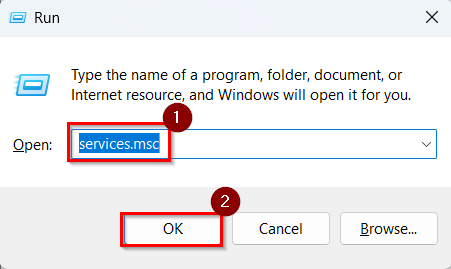
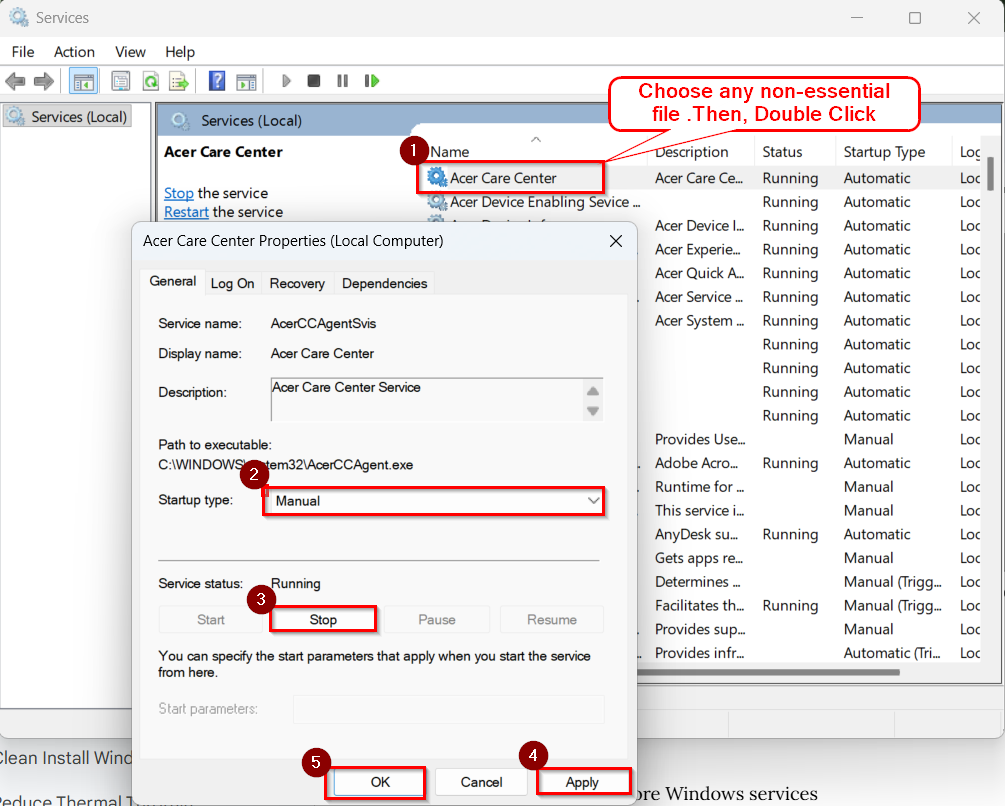
➤ Press Windows + R, type services.msc, and press Enter.
➤ Locate non-essential services such as Print Spooler (if unused) or Windows Search.
➤ Double-click the service and set Startup type to Manual.
➤ Click Stop, then Apply, then OK.
➤ Restart the laptop and monitor performance.
Note:
- Do not disable core Windows services
- Create a restore point before changes
Method 9: Clean Install Windows for System Reset
Clean Install Windows is another deep recovery method that removes system corruption, bloatware, and legacy files. This is good for OS integrity and long-term performance. It is more effective than repair tools because it rebuilds the system from scratch. We use this approach when laptops remain slow after all optimizations.
Steps:
➤Backup important files to an external drive or cloud storage.
➤ Press Windows + I and go to System → Recovery.
➤ Step 3: Click Reset this PC and choose Remove everything.
➤ Step 4: Select Cloud download or Local reinstall.
➤ Step 5: Complete installation and install essential drivers only.
Note:
- Data loss occurs without backup
- Best method for very old systems
Method 10: Reduce Thermal Throttling by Cleaning and Repasting
Reduce Thermal Throttling by Cleaning and Repasting is a hardware maintenance method that improves heat dissipation. This method is more effective than software fixes when performance drops under load. We use this when laptops slow down during gaming or heavy tasks.
Steps:
➤ Install a temperature monitoring tool to check CPU and GPU heat levels.
➤ Power off the laptop and remove the back panel.
➤ Clean dust from fans and vents using compressed air.
➤ Replace old thermal paste on CPU and GPU if accessible.
➤Reassemble the laptop and test performance.
Note:
- Advanced users only
- Incorrect handling may void warranty.
You May Like
- Samsung Galaxy S26 Ultra 5G Review: Know Before You Buy
- OnePlus 15R Review: This Isn’t the R-Series Phone I Expected
- Samsung Galaxy S26 Plus Review: 5 Big Changes
Frequently Asked Questions (FAQs)
Why is my laptop suddenly very slow?
Too many startup apps, low disk space, power throttling, or malware often cause sudden slowdown.
Does High Performance mode really speed up a laptop?
Yes, it removes CPU power limits and improves responsiveness when plugged in.
Is upgrading to an SSD worth it for slow laptops?
Yes, SSD upgrades provide the biggest performance boost for older laptops.
Can too many background apps slow down a laptop?
Yes, background apps consume CPU and RAM even when not actively used.
How often should I clean my laptop system?
Basic cleanup every 1–2 months helps maintain stable performance.
How do I make my laptop faster?
To make your laptop faster, remove unnecessary software and reduce background activity. Start by uninstalling unused programs and disabling startup apps. Run Disk Cleanup to clear temporary files, scan for malware, and keep your operating system and drivers updated.
Concluding Words
Fixing a slow laptop does not always require buying a new device. Methods like disabling startup programs, using High Performance power settings, and freeing disk space can significantly improve speed and usability when applied correctly.