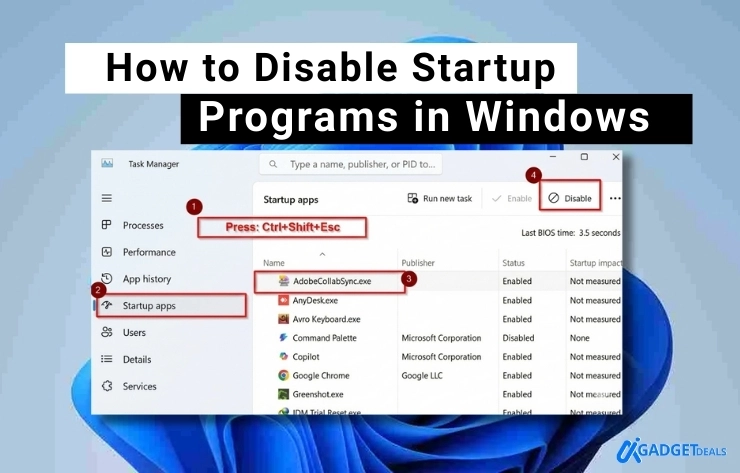
Startup programs are apps and services that automatically launch when we turn on our Windows laptop. These Windows startup apps begin running in the background before we even reach the desktop. Some are essential. Many are not. When too many startup programs load at once, our boot time becomes slow. Windows must divide CPU power, RAM, and disk usage between all these background programs. The result feels familiar: a slow laptop, delayed desktop loading, and laggy response after startup.
Excessive background programs also keep running after boot. They consume memory and processing power continuously. This causes apps to open slowly, fans to run louder, and overall performance to drop especially on laptops with limited RAM or older HDD storage.
If your Windows laptop feels sluggish, startup programs are often one of the first performance bottlenecks to check. Managing them is a core step in fixing common slow laptop issues. So, let’s learn this step-by-step-
In This Post......
- What Are Startup Programs in Windows?
- How Startup Programs Affect Laptop Performance
- How to Disable Startup Programs in Windows Using Task Manager
- Alternative 3 Ways to Disable Startup Programs in Windows
- Method-2: Disable Startup Programs Using System Configuration (msconfig)
- Common Mistakes When Disabling Startup Programs
- How Disabling Startup Programs Helps Fix a Slow Laptop
- Frequently Asked Questions (FAQs)
- Final Thoughts
What Are Startup Programs in Windows?
Startup programs are auto-start applications that launch automatically during the Windows startup process when you turn on your PC. They begin running in the background before or just after the desktop appears.
Windows allows apps to start automatically to ensure important services work right away. Security tools, drivers, and system utilities need to run early so the system stays stable, secure, and fully functional.
There is a key difference between app types. Essential system apps are required for Windows to operate properly. Third-party apps are added by software you install and are often optional. Too many third-party startup apps can slow boot time and affect performance.
How Startup Programs Affect Laptop Performance
There are many startup programs that directly impact laptop speed and stability. These effects often appear immediately after boot.
- Increased startup and login time: Multiple auto-start apps load at once, making Windows boot slower and delaying desktop access.
- High CPU usage at idle: Background startup apps continue running, causing CPU usage high even when no apps are open.
- High RAM consumption: Auto-start processes stay in memory, leading to RAM usage high and less space for active tasks.
- Disk usage spikes: On some systems, startup apps trigger constant reads and writes, resulting in disk usage 100%, especially on HDDs.
- Reduced system responsiveness: Apps open slowly, multitasking feels laggy, and the laptop becomes less responsive overall.
- Greater impact on older laptops and HDD systems: Devices with limited RAM or traditional hard drives suffer the most, making performance issues more noticeable.
Reducing unnecessary startup programs is one of the fastest ways to fix slow laptop problems.
How to Disable Startup Programs in Windows Using Task Manager
Disable startup programs in Windows using Task Manager is the easiest built-in method to control which apps run when Windows starts. We use this method when our laptop boots slowly or feels laggy after login. It helps reduce background load and improves performance. For example, disabling auto-start apps like chat tools or game launchers can noticeably speed up startup time.
Steps:
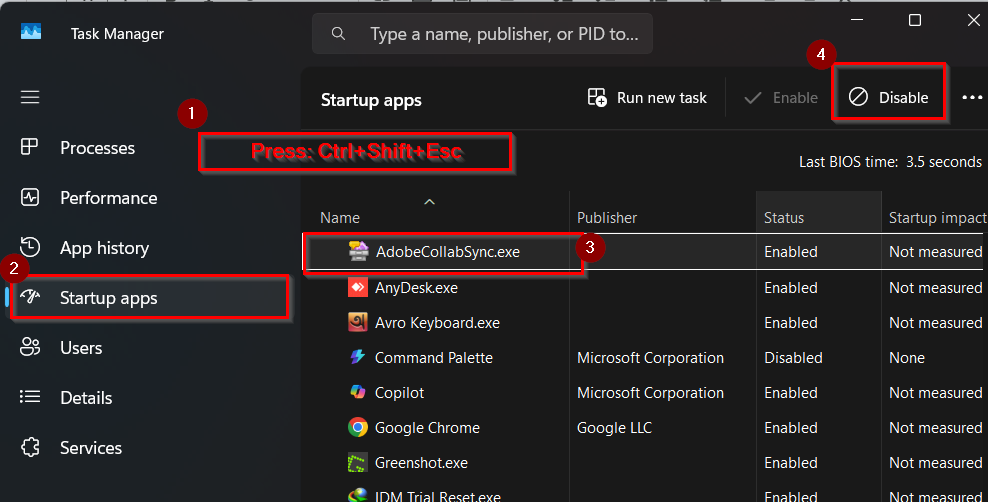
1. Press Ctrl + Shift + Esc on your keyboard. Task Manager will open instantly. If the Task Manager opens in a compact view, click More details at the bottom. Then select the Startup tab at the top.
2. Look at the Name, Status, and Startup Impact columns. Apps marked as High impact slow down boot time the most.
3. Click once on any third-party app you do not need at startup. For example, AdobrCollabSync.exe
4. Click the Disable button in the bottom-right corner. The app will no longer run during startup.
5. Restart Windows to apply changes and experience faster startup and improved responsiveness.
Note:
- Do not disable Microsoft, driver, or security related apps unless you know their purpose.
- Focus on apps with High startup impact first.
- If you disable an app, it does not uninstall; it only stops auto-start.
For a complete performance recovery strategy, follow How to Fix Slow Laptop?, which covers startup control along with other proven fixes.
Alternative 3 Ways to Disable Startup Programs in Windows
Method-1: Disable Startup Apps from Windows Settings
Disable Startup Apps from Windows Settings is a user-friendly method built into Windows that lets you control auto-start apps without using Task Manager. Use this method when you prefer a simple interface or are new to Windows settings. It helps reduce boot time and background load. For example, turning off auto-start apps like cloud sync tools can make startup faster.
Steps:
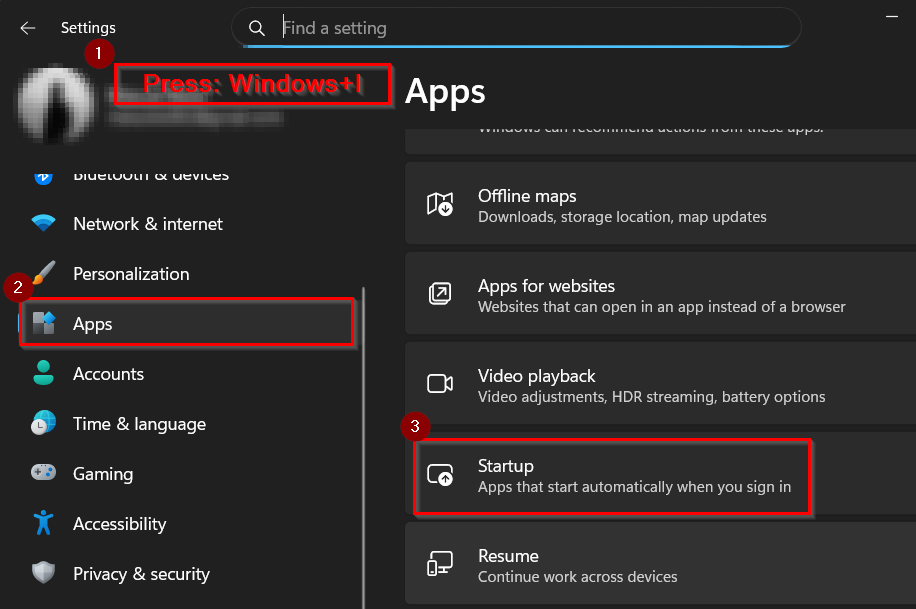
1. Press Windows + I on your keyboard to open the Settings app.
2. Click Apps from the left menu. This section controls installed applications and startup behavior.
3. Select Startup from the Apps menu. You will see a list of apps that can start with Windows.
4. Check each app’s impact label, such as High, Medium, or Low, shown below the app name.
5. Use the toggle switch next to any non-essential app to turn it Off. Changes apply instantly.
6. Restart your laptop to see improved startup speed and smoother performance.

To reduce unnecessary startup programs is one of the fastest ways to fix slow laptop problems,so follow How to Fix Slow Laptop? To make your laptop superb.
Method-2: Disable Startup Programs Using System Configuration (msconfig)
Disable startup programs using system configuration (msconfig) is an advanced Windows tool mainly used to control startup services and boot behavior. We use this method when troubleshooting startup issues or diagnosing slow boot problems. It helps isolate problematic services that load with Windows. For example, performing a selective startup can identify which service causes delays.
Steps:
1. Press Windows + R on your keyboard to open the Run window.
2. Type msconfig in the Run box and press Enter. The System Configuration window will open.

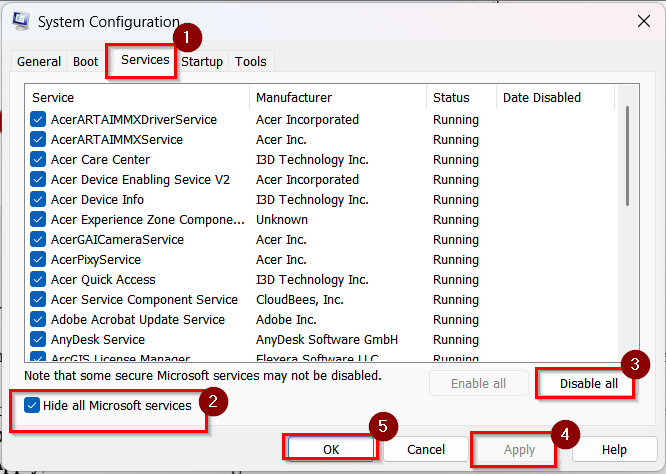
3. Click the Services tab at the top. This section controls system and third-party services that start with Windows.
4. Check the box Hide all Microsoft services to avoid disabling critical system components.
5. Click Disable all or manually uncheck services you do not need at startup.
6. Click Apply, then OK to save changes.
7. Restart Windows to apply the new startup configuration.
Note:
- In Windows 10 and Windows 11, startup apps are managed in Task Manager, not directly in msconfig.
- Use msconfig mainly for troubleshooting, not daily startup management.
- Disabling the wrong service may cause system instability.
Common Mistakes When Disabling Startup Programs
Disabling startup apps can speed up a slow laptop, but mistakes may cause Windows startup errors or system instability. Don’t make these mistakes-
- Disabling system-critical apps: Turning off security tools, drivers, or Microsoft system apps can lead to boot issues and reduced system stability.
- Confusing services with startup apps: Startup apps and Windows services are different. Disabling essential services instead of third-party startup apps may cause features to stop working.
- Disabling everything at once: Turning off all startup programs makes it hard to identify which app caused a problem and increases the risk of system instability.
How Disabling Startup Programs Helps Fix a Slow Laptop
Disabling unnecessary startup programs is a simple and effective way to fix a slow laptop, especially during boot and early use.
- Faster startup: Fewer auto-start apps load at boot, resulting in a faster boot time and quicker access to the desktop.
- Reduced CPU and RAM load: Background apps stop consuming resources, leading to lower CPU usage and more free memory.
- Smoother multitasking: With fewer background processes, apps open faster and overall improved performance becomes noticeable.
- Works best with other optimization methods: Startup management delivers the best results when combined with storage cleanup, malware scans, and system updates.
Disabling startup apps is just one solution, follow How to Fix Slow Laptop? for a full Windows performance fix.
Frequently Asked Questions (FAQs)
Is it safe to disable startup programs?
Yes. Disabling non-essential startup apps is safe and helps reduce common Windows performance issues. Avoid turning off security software, drivers, or Microsoft system apps.
Can disabled apps be re-enabled?
Yes. Any disabled startup app can be turned back on at any time using Task Manager or Windows Settings. No data or app functionality is lost.
How many startup apps are ideal?
There is no fixed number, but fewer is better. For most users, 3–5 essential startup apps provide a good balance between functionality and performance.
Does disabling startup apps improve gaming performance?
Yes. Reducing background processes frees CPU and RAM, which can improve game stability, loading times, and overall performance. This is a common topic in startup apps
Final Thoughts
Startup optimization plays a critical role in effective Windows performance tuning. Controlling which apps launch at boot helps reduce system load and prevents unnecessary background activity. Startup control remains a core method for fixing slow laptops. It improves boot speed, lowers CPU and RAM usage, and restores responsiveness without installing extra software.
For best results, combine startup optimization with disk cleanup, optimized power settings, and an SSD upgrade if possible. Together, these steps deliver long-term performance improvements and a smoother Windows experience.