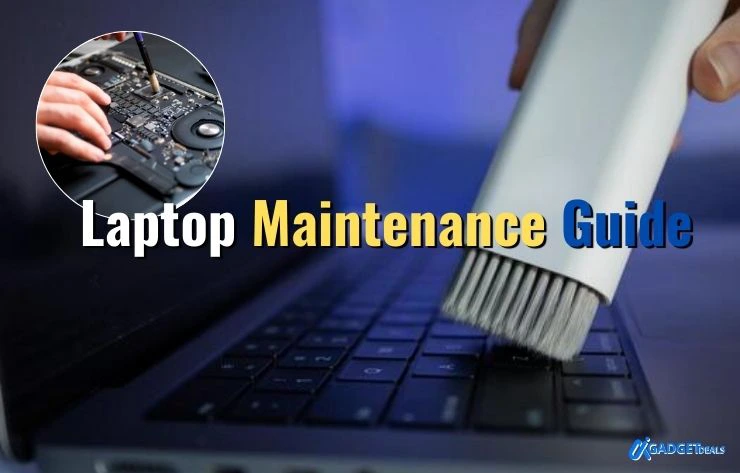
Two years ago, a friend told me his laptop was “dying.” It was slow, overheated constantly, and the battery barely lasted two hours. He was ready to buy a new one. After 45 minutes of cleaning, uninstalling unused apps, and adjusting startup settings, it felt like a new machine.
The lesson? Most laptops don’t fail. They are simply neglected. So how can a laptop maintenance guide help you?
A proper laptop maintenance routine helps you clean your laptop safely, improve laptop performance, and significantly extend laptop lifespan. Small, consistent habits prevent slowdowns, overheating, and battery damage.
In this complete laptop maintenance guide, I will talk about practical steps, real-world examples, and expert-backed insights to make your laptop fast and reliable for years.
In This Post......
- Why Laptop Maintenance Actually Matters
- 1. Cleaning Laptop: The Most Overlooked Performance Boost
- 2. Improve Laptop Performance with Smart Software Habits
- 4. Battery Care: Protect Your Laptop Lifespan
- 5. Prevent Overheating: Heat Is the Silent Killer
- 6. Physical Protection: Most Damage Is Accidental
- Security Maintenance: Performance Is Also Protection
- Quick Laptop Maintenance Checklist
- How Long Can a Well-Maintained Laptop Last?
- Final Thoughts
Why Laptop Maintenance Actually Matters
Last winter, I worked at a cafe where almost every table had someone tapping on a laptop. Some were silent and smooth. Others sounded like small engines about to take off. The difference wasn’t brand. It was maintenance.
According to technology industry analyst Tom Mainelli, Group Vice President at IDC,
Most consumer laptop replacements happen due to performance frustration, not hardware failure. Poor maintenance accelerates that frustration.
When maintenance is ignored, I faced-
- Performance gradually drops
- Internal heat increases
- Battery health declines
- Components wear out faster
When you will follow maintenance routine-
- Systems stay responsive
- Hardware lasts longer
- Resale value improves
Maintenance is not optional. It is performance insurance.
1. Cleaning Laptop: The Most Overlooked Performance Boost
A college student once told me his laptop would freeze during online exams. The issue? Dust-clogged fans causing thermal throttling.
After internal cleaning, the overheating stopped completely. Dust silently blocks airflow. When airflow is restricted, the CPU reduces performance to protect itself. That’s why cleaning laptop vents and keyboards is not cosmetic. It directly impacts speed.
Technology hardware analyst Patrick Moorhead, CEO of Moor Insights & Strategy, often highlights thermal management as one of the biggest long-term performance factors in compact devices.
Exterior Cleaning (Weekly or Bi-Weekly)
For exterior cleaning, you will need-
- Microfiber cloth
- 70% isopropyl alcohol
- Soft brush
But what is the process? Don’t be panicked! Follow these simple steps-
- Power off your laptop.
- Wipe the screen gently.
- Clean between keys.
- Remove visible dust around vents.
Internal Cleaning (Every 6–12 Months)
If you feel comfortable, use compressed air to clear fans and vents. Or, visit a professional technician annually. Internal cleaning alone can improve laptop performance noticeably.
2. Improve Laptop Performance with Smart Software Habits
A graphic designer once upgraded RAM thinking it would fix lag. It didn’t.
The real problem? 18 startup programs launching automatically. Software clutter slows systems more than aging hardware.
According to device performance research cited by analysts at Gartner, background processes are one of the most common hidden causes of performance degradation.
Remove Startup Apps
- Open Task Manager (Windows) or System Settings (Mac).
- Disable non-essential startup programs.
Result: Faster boot time. Smoother multitasking.
Update Regularly
System updates:
- Improve security
- Fix performance bugs
- Optimize resource usage
Ignoring updates increases long-term instability. I will suggest that you update your laptop on time.
Remove Unused Applications
Every unused app consumes storage, runs background services, and slows down the overall performance Quarterly cleanup keeps your system lean.
3. Storage Management: Keep at Least 20% Free
A business owner once complained about constant freezing. His SSD was 98% full.
Modern operating systems need breathing room. Storage experts frequently note that SSD performance drops when nearly full due to reduced write optimization capacity. So, to keep safe, maintain at least 20% free storage.
But how will you free up space, right? Follow these-
- Delete large unused files
- Move media to cloud storage
- Use external drives
This simple habit improves laptop performance and extends drive lifespan.
4. Battery Care: Protect Your Laptop Lifespan
Many people keep their laptop plugged in 24/7. It feels convenient. But long-term full charging increases chemical stress inside lithium-ion batteries. Battery research analysts often recommend keeping charge between 20% and 80% for optimal longevity.
I once followed this habit on a work laptop. After three years, battery health remained above 85%.
To keep you battery safe, follow these-
- Avoid full discharge regularly
- Enable battery optimization settings
- Reduce screen brightness when possible
5. Prevent Overheating: Heat Is the Silent Killer
A gaming laptop I reviewed once lost 20% performance after one year. The cause was simple: constant heat exposure. Heat reduces CPU and GPU lifespan.
According to hardware performance analysts, sustained high temperatures accelerate silicon degradation. Therefore, it is obligatory work to keep your laptop from overheating.
To prevent overheating-
- Use laptop on hard surfaces
- Keep ventilation areas clear
- Avoid blocking side vents
- Consider a cooling pad for heavy workload.
6. Physical Protection: Most Damage Is Accidental
One small spill can destroy a motherboard instantly. Most laptop failures are physical, not digital. Must use protective sleeves, padded bags and careful lid handling. Never lift a laptop by its screen. That stress hinges over time. Small care prevents expensive repairs.
Security Maintenance: Performance Is Also Protection
A slow laptop may be infected. A malware can consume CPU, use memory, and drain battery. It has built-in security tools, automatic backups, and regular password updates. Security maintenance supports performance stability.
Quick Laptop Maintenance Checklist
Follow this laptop maintenance guide checklist to make your laptop reliable for years-
Weekly:
- Wipe screen and keyboard
- Check suspicious software
Monthly:
- Review startup programs
- Clean temporary files
- Check storage capacity
Every 6–12 Months:
- Internal dust cleaning
- Battery health check
- Optional system reset.
How Long Can a Well-Maintained Laptop Last?
From market lifecycle analysis by IDC, consumer laptops typically get replaced every 3–4 years. But with proper laptop care tips:
- Budget laptops: 4–6 years
- Mid-range laptops: 5–7 years
- Premium laptops: 6–8+ years
Maintenance often doubles practical lifespan.
Final Thoughts
A laptop rarely becomes slow overnight. It gradually becomes neglected. Regular cleaning, smart battery care, storage management, and software optimization dramatically improve laptop performance and extend laptop lifespan. You don’t need technical expertise. You need consistency. Follow this laptop maintenance guide seriously, and your laptop won’t just last, it will stay fast, cool, and dependable for years.
Start today. Performance is not luck. It is maintenance.