Nowadays, if we search any queries in google, it directly shows AI Overview in the top page result. Many users are frustrated with Google’s new AI Overview. It doesn’t matter what we are searching, such as researching, fact-checking, or doing professional work, the AI overview can feel distracting or inaccurate.
Don’t worry! If you are also frustrated with this and want to replace it with the traditional search result, I am here to solve your problem.
In this article, I will show you 3 easiest methods that you can apply to turn off AI overview. So, let’s see in details-
In This Post......
Method 1: Create a Custom Search Engine to Turn Off Google AI Overview
Creating a custom search engine is a simple method that allows us to bypass the AI Overview and always load classic Google results. This method works by adding a special parameter (udm=14) that forces Google to show its old-style interface. Compared to the ad blockers or extensions, this works directly in our browser settings, making it more stable and reliable. We use this method when we want a permanent, automatic way to avoid AI Overview without installing anything. It is best for users who frequently search and need consistent, non-AI-generated results.
Steps:
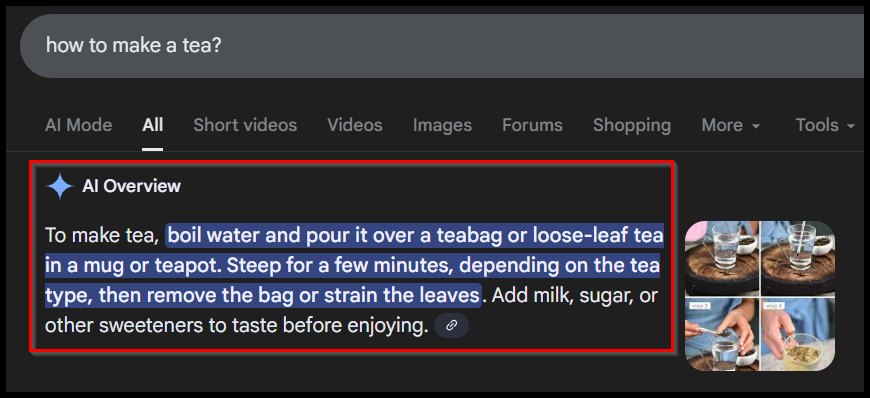
➤ We have taken an example from Google. When we search anything in Google or Microsoft Edge browser, it shows AI Overview. Our goal is to overcome this problem. So, let’s see the next step to stop the AI Overview.
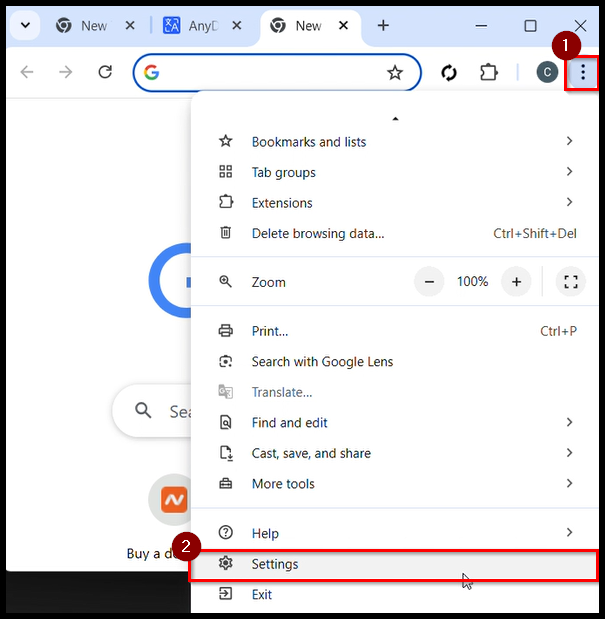
➤ Open your chrome browser. Click on “three dots” beside the Email Icon.
➤ Then, click on Settings.
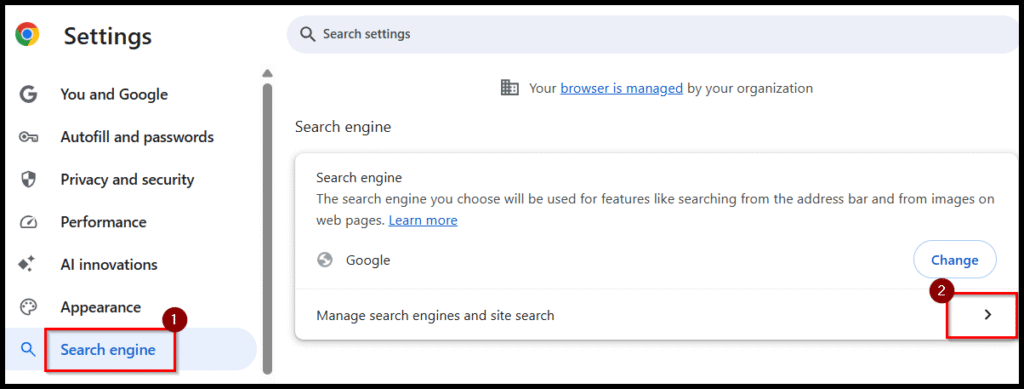
➤ Click on the Search Engine. Then, click on the arrow section.
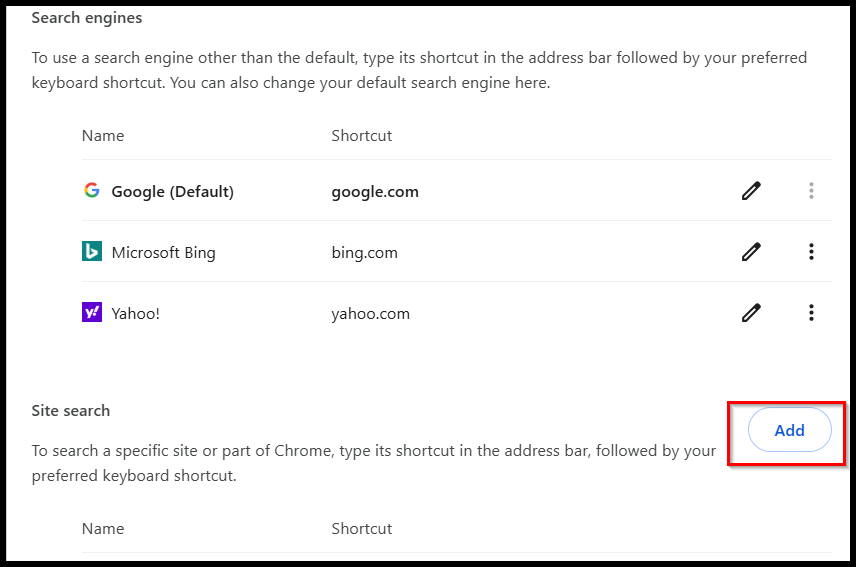
➤ On this page, scroll until you find the section named “Site Search”. This is where you can add new custom search engines.
➤ To create a new custom search engine, click the Add button beside “Site Search”.
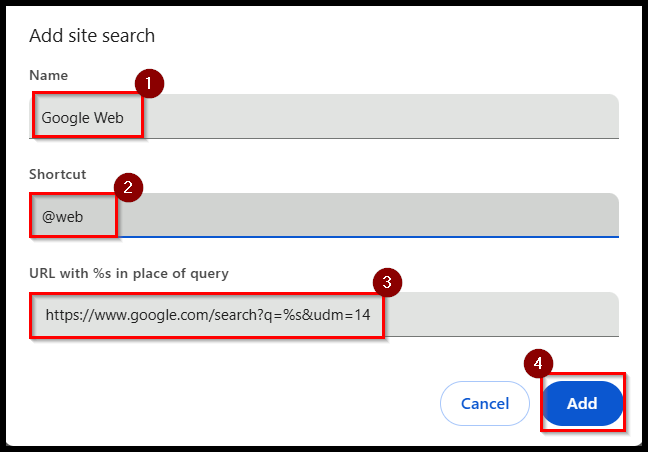
➤ A small form/modal will appear with three fields you must fill in.
➤ Fill the three fields exactly as follows:
- Name: Google Web
- Shortcut: @web
- URL: https://www.google.com/search?q=%s&udm=14
➤ Click the Add button to save the new custom search engine. It now appears inside your list of site search engines. The %s represents your search term. The udm=14 forces classic Google results without AI Overview.
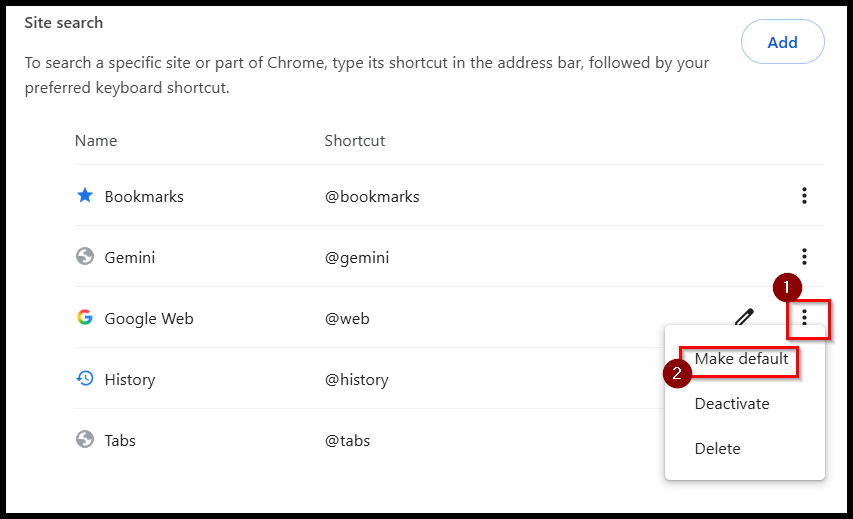
➤ Find Google Web in the list, click the three dots on the right side, and select Make default.
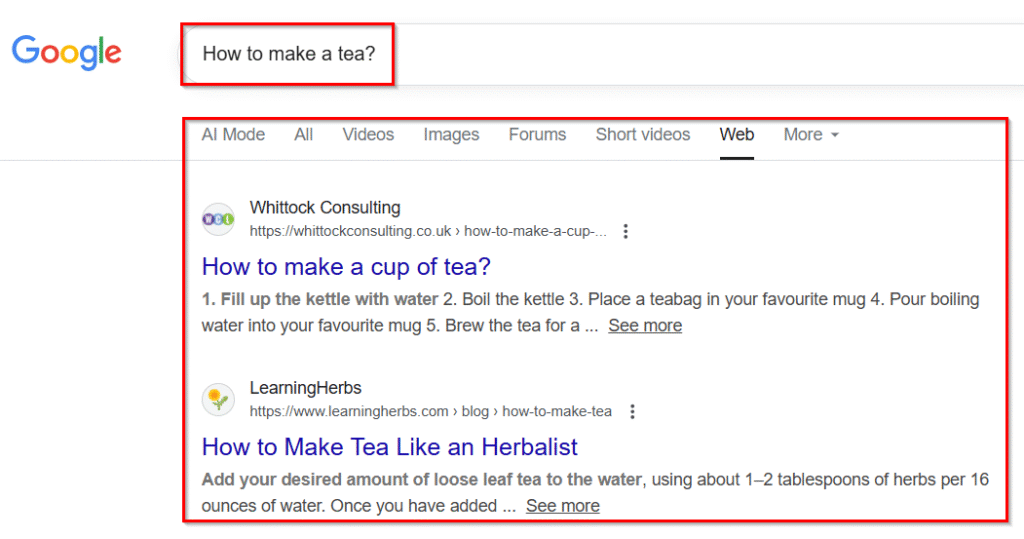
➤ Now type any query in the Chrome address bar. You will notice that the results page loads instantly with no AI Overview, only classic blue links.
Method 2: Use Google Search Labs to Turn Off AI Overview
The Google Search Labs approach helps to easily disable the AI Overview feature directly from Google’s experimental settings. This method works by accessing the Search Labs panel and switching off the AI Overview toggle. Unlike browser extensions or external tweaks, this approach is native to Google and works instantly across your Google account. We use this method when we want a straightforward, official way to remove AI Overview.
Steps:
➤ Open Chrome and visit the Google homepage. Make sure you are signed in to the Google account linked to your device settings.
➤ Click on the “Flask” Icon (Search Labs Icon) at the top right.
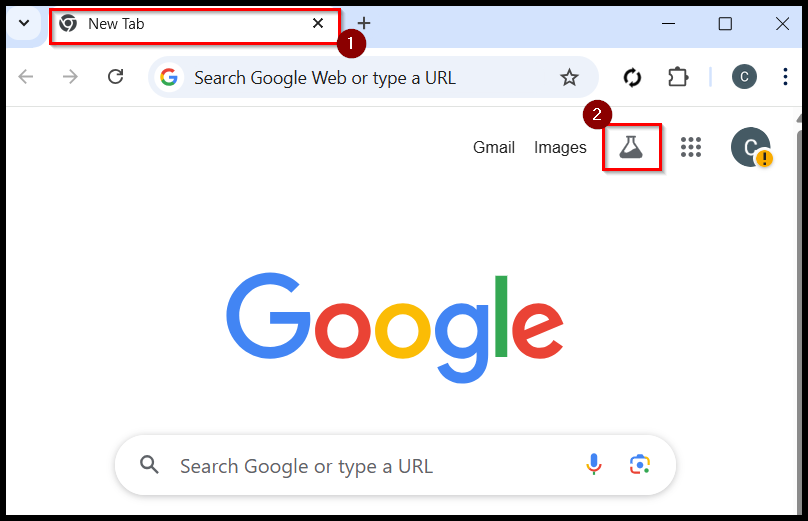
➤ Inside Search Labs, look for the feature labeled AI Overview or Search Generative Experience (SGE). It will usually appear as a section with a toggle switch next to it.
➤ Click the toggle switch to turn it Off. Once turned off, Google Search will stop showing AI-generated summaries for your searches.
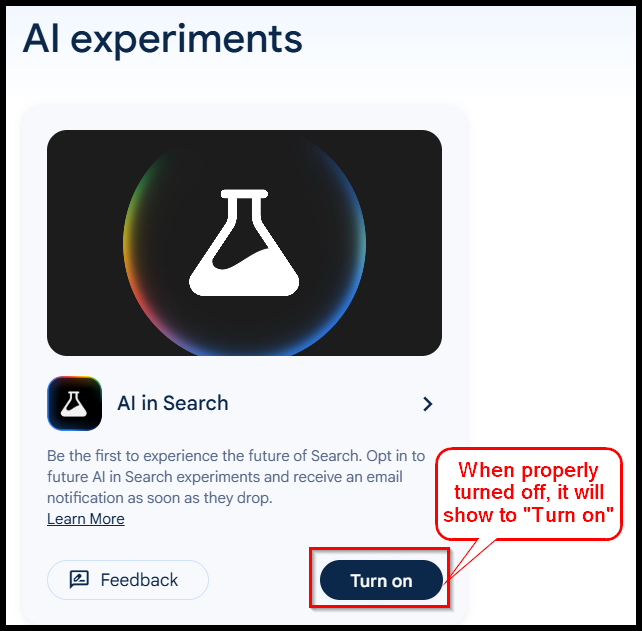
➤ Go back to your Google search window and refresh it. The AI Overview module will now be disabled for your search results.
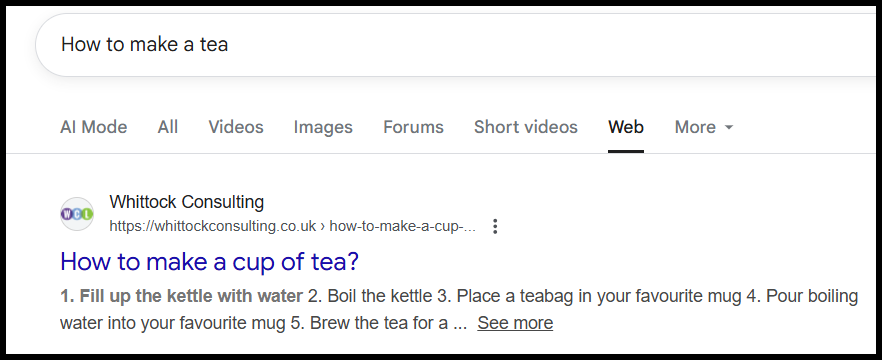
Note:
- You must be logged into the same Google account where you want the AI Overview disabled.
- Some regions may not have Search Labs available.
- If you don’t see the flask icon, AI Overview may already be off or unavailable in your region.
Method 3: Modify Individual Search Queries to Disable AI Overview
Modify Individual Search Queries is a quick method that allows us to block AI Overviews for specific searches by adding a simple keyword modifier to your query. Compared to browser settings or extensions, this technique works instantly and does not require installations or login changes. We use this method when we want control over each search separately or when using a device where we cannot change settings.
Steps:
➤ Go to www.google.com in your browser and locate the search bar at the top of the page.
➤ Enter your search normally. For example: how to make a tea.
➤ After your main keywords, type a space, then and then -AI (with Hyphen). Example: how to make a tea -AI.
➤This instructs Google not to generate an AI Overview for this particular search.
➤ Google will load search results without the AI Overview section. Only traditional search results (links, snippets) will appear.
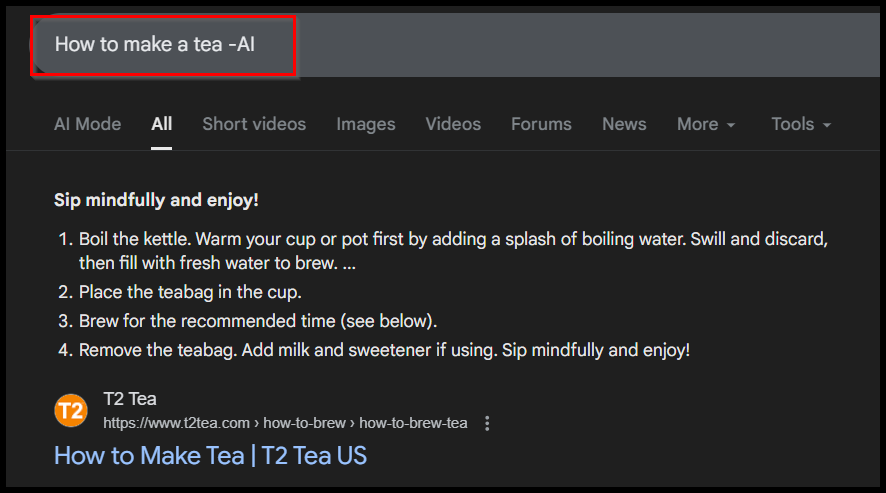
Note:
- This method only disables AI Overview for searches where you manually add “-AI”
- You must repeat this step for each new search.
Frequently Asked Questions (FAQs)
Can I disable AI Overview directly from Google settings?
No. Google has not provided any toggle or built-in option to remove AI Overview.
Does the custom search engine method work all the time?
Yes, currently this is the most stable method because it forces Google to load the classic interface.
Does this affect search quality?
No. You’ll still receive the same Google results—just without AI summaries.
Does this method work on mobile?
Yes, but it depends on the browser. It works best on Chrome, Brave, and Edge with address-bar search enabled.
Concluding Words
We know that, turning off Google’s AI Overview is not officially supported, but the Custom Search Engine, Search Lab, and Modify query method provides a clean, consistent workaround. This approach easily returns you in the old search results. It’s simple, stable, and perfect for users who want fast, clutter-free searches.