

Buying a second-hand Acer laptop can help you get better specifications for less money than a new device. However, the condition of the processor, battery, SSD, display and motherboard matters more than the laptop’s appearance. Before paying, verify the exact model, test its essential components and check the seller’s warranty or return policy.
Acer offers several laptop families, including Aspire, Swift, TravelMate, Nitro and Predator. Each serves a different type of user, so choosing the right model depends on what you plan to do with it.
This guide explains how to inspect a used Acer laptop, understand its specifications and identify problems before completing your purchase.
1. Identify the Exact Acer Laptop Model
Start by finding the complete model number. Simply knowing that a laptop belongs to the Acer Aspire or TravelMate family is not enough.
Different versions of the same Acer laptop can have different processors, RAM configurations, display resolutions and storage options.
For example, an Acer Aspire 5 with a newer Core i5 processor may offer better everyday performance than an older Aspire 7 configuration, depending on the exact processor and other specifications.
Check the following information:
-
Full Acer model number
-
Processor name and generation
-
Installed RAM
-
SSD or HDD capacity
-
Display size and resolution
-
Dedicated or integrated graphics
-
Battery condition
You can find basic system information through Windows.
-
Press Windows + R.
-
Type
msinfo32. -
Press Enter.
-
Review the System Model and Processor fields.
You can also open Task Manager using Ctrl + Shift + Esc and select Performance to check the processor, memory and storage information.
Important: Ask the seller for the complete model number before visiting the shop. This gives you time to compare its specifications with other available laptops.
2. Check the Processor Generation and Performance
The processor is one of the most important components in a second-hand Acer laptop.
Two laptops advertised as Core i5 models may have very different performance because they belong to different generations and processor families.
For everyday activities such as browsing, online classes, documents and video calls, a reasonably modern Core i3 or Ryzen 3 may be sufficient. For heavier multitasking, programming and demanding applications, consider a suitable Core i5 or Ryzen 5 configuration.
Here are some general buying considerations:
| Processor type | Suitable for | What to consider |
|---|---|---|
| Intel Core i3 | Browsing, documents and basic tasks | Prefer a newer generation |
| Intel Core i5 | Multitasking and everyday work | Check the exact model number |
| Intel Core i7 | Demanding applications | Older generations are not automatically faster |
| AMD Ryzen 3 | Everyday computing | Check the processor series |
| AMD Ryzen 5 | Multitasking and productivity | Compare performance and power consumption |
| AMD Ryzen 7 | More demanding workloads | Check cooling and graphics capabilities |
Do not purchase a laptop simply because the seller advertises it as an i7 machine. An older processor may be slower or less efficient than a newer i5.
For a better decision, compare the exact processor model rather than relying on its marketing name.
3. Inspect Battery Health Before Paying
Battery condition is particularly important when purchasing a used laptop.
A second-hand Acer laptop may work perfectly while connected to its charger but lose power quickly when unplugged. Replacing an old battery can increase your overall purchase cost.
Windows provides a built-in battery report that helps you understand its condition.
How to generate a battery report:
-
Open the Start menu.
-
Search for Command Prompt.
-
Select Run as administrator.
-
Enter the following command:
powercfg /batteryreport
-
Press Enter.
-
Open the generated HTML report using the file location shown in Command Prompt.
Find these two values:
-
Design Capacity: The battery’s original rated capacity.
-
Full Charge Capacity: The capacity it can currently hold.
For example, if the original capacity was 48,000 mWh and the current full-charge capacity is 36,000 mWh, the battery retains approximately 75% of its original capacity.
This does not guarantee a particular runtime because actual battery life also depends on screen brightness, workload and power settings.
Ask the seller whether the battery is original or replaced. If it needs replacement, include that expense when comparing prices.
4. Check RAM and SSD Storage
RAM and storage have a direct effect on everyday laptop performance.
A used Acer laptop with an older hard drive can feel considerably slower than a similar configuration with an SSD.
For a practical purchase, consider these specifications:
| Component | Basic recommendation | Better option |
|---|---|---|
| RAM | 8GB | 16GB |
| Storage | 256GB SSD | 512GB SSD |
| Storage type | SATA SSD | NVMe SSD, if supported |
| Upgrade options | Depends on model | Accessible RAM and storage slots |
For basic browsing and document work, 8GB RAM may be adequate. However, 16GB provides more room for multitasking.
Before purchasing, check whether the RAM is upgradeable. Some Acer models have soldered memory, while others include replaceable modules or additional slots.
Also confirm whether the laptop uses SATA or NVMe storage. Do not assume that every Acer model supports the same SSD type.
Ask the seller to demonstrate the installed RAM and storage through Task Manager or System Information.
5. Inspect the Display, Keyboard and Hinges
Physical condition can reveal problems that specifications do not show.
Start with the screen. Open a white background, then check darker colours and different brightness levels. Look for dead pixels, flickering, unusual colour patches and visible screen damage.
Next, inspect the keyboard and touchpad.
Test the following:
-
Every keyboard key
-
Touchpad movement and clicking
-
Screen brightness controls
-
Function keys
-
Webcam and microphone
-
Speakers and headphone jack
Pay particular attention to the hinges. Open and close the display slowly several times.
The screen should remain stable without unusual cracking sounds, excessive movement or separation around the hinge area.
Also inspect the bottom panel, corners, screws and charging port. Missing screws or signs of previous repairs are reasons to ask additional questions, although they do not automatically mean the laptop is faulty.
6. Test the SSD, Ports and Overall Performance
A used laptop may start Windows normally but still have storage problems or unreliable connections.
Test the available ports before purchasing.
| Component | What to check |
|---|---|
| USB ports | Connect a flash drive or mouse |
| HDMI | Confirm external display output |
| Wi-Fi | Connect to a network |
| Bluetooth | Pair a compatible device |
| Charging port | Check for a stable connection |
| Headphone jack | Test audio output |
| Webcam | Open the Camera application |
| Speakers | Play a short audio sample |
You should also check the SSD’s health using a reputable drive-health utility.
Look for warnings, reported errors and available drive information. Remember that a health indicator is not a guarantee that an SSD will never fail.
After the basic checks, use the laptop for 10 to 15 minutes.
Open several browser tabs, play a video and launch a normal application. Observe whether the system freezes, restarts unexpectedly or becomes unusually hot.
A loud fan is not automatically a fault, but persistent excessive noise, unexpected shutdowns or major performance drops deserve further inspection.
7. Choose the Right Acer Laptop Series
Acer has several laptop families designed for different requirements. The right choice depends on your workload, budget and preferred features.
The following are model-family recommendations, not verified rankings of current second-hand listings.
Acer Aspire: For Everyday Use
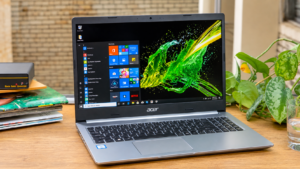
The Aspire series is a practical starting point for students, home users and people who need a laptop for everyday computing.
Depending on the configuration, an Aspire laptop can handle browsing, office applications, online meetings and entertainment.
Best for: Students, general users and office tasks.
Check before buying: Processor generation, screen quality, battery condition and RAM upgrade options.
Potential drawback: Entry-level configurations may have limited graphics performance and basic display quality.
Acer Swift: For Portability

The Swift series focuses on portable designs and everyday productivity.
It can be a good option if you frequently carry your laptop between home, school or work.
Best for: Travelling users, students and people who value portability.
Check before buying: Battery condition, hinge stability, keyboard, display and soldered RAM.
Potential drawback: Some thin models offer limited upgrade options.
Acer TravelMate: For Office and Business Work
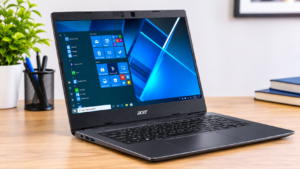
TravelMate models are designed for business and productivity requirements.
Depending on the generation, they may offer practical connectivity, business-oriented features and configurations suitable for everyday office work.
Best for: Office users, professionals and productivity-focused buyers.
Check before buying: Previous business use, BIOS password status, battery condition and keyboard wear.
Potential drawback: Some used units have experienced years of intensive office use.
Acer Nitro: For Gaming and Creative Applications

Acer Nitro laptops are designed for gaming and more graphics-intensive workloads.
A suitable configuration may also support video editing and other demanding applications.
Best for: Gaming, graphics work and demanding applications.
Check before buying: Dedicated GPU, cooling system, fan noise, temperatures and charger specifications.
Potential drawback: Gaming laptops generally consume more power and may have shorter battery life than lightweight productivity models.
Acer Predator: For Higher-End Performance
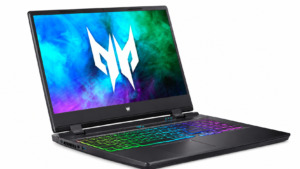
Predator laptops target users who need higher-performance gaming hardware.
They can be attractive second-hand options, but their condition matters greatly because powerful processors and graphics chips generate considerable heat.
Best for: Demanding gaming and graphics workloads.
Check before buying: GPU condition, cooling performance, screen, battery and power adapter.
Potential drawback: Repairs and replacement components can be more expensive than those for basic Acer laptops.
8. Verify Windows Compatibility and Acer Support
An older laptop may have good specifications but still lack support for a newer operating system.
Before buying, check whether the exact processor and device meet Windows 11 requirements. Microsoft lists supported hardware requirements, including processor compatibility, TPM 2.0 and Secure Boot.
You can also use Microsoft’s PC Health Check application to check Windows 11 compatibility.
Do not assume that a laptop can officially run Windows 11 just because Windows 11 is already installed on it.
Next, verify the Acer model through its official support website.
Find the laptop’s serial number or SNID, usually printed on a label underneath the device. Acer explains that these identifiers help locate the correct product specifications, warranty information and support resources.
If the serial number is missing, damaged or does not match the product information, ask the seller for an explanation.
Also restart the laptop and check that it does not have an unknown BIOS password or organizational management restriction.
9. Compare the Total Cost Before Buying
The cheapest second-hand Acer laptop is not always the best purchase.
A laptop advertised at a lower price may require a replacement battery, SSD upgrade, charger or keyboard repair.
Calculate the actual cost before making a decision.
For example:
| Expense | What to consider |
|---|---|
| Laptop purchase | Agreed selling price |
| Battery replacement | Only if required |
| SSD upgrade | If existing storage is insufficient |
| RAM upgrade | If supported and necessary |
| Charger | Replacement cost if missing or faulty |
| Repairs | Any confirmed hardware issue |
Compare the final amount with other laptops offering similar specifications and condition.
If you are purchasing from an online seller, request clear pictures, the complete model number and a video showing the laptop operating. Avoid paying in advance without suitable buyer protection.
Whenever possible, inspect the laptop in person and request a written receipt that includes the model, specifications, price and any warranty agreement.
10. What Should You Ask the Seller Before Buying?
Before completing the purchase, ask these questions:
-
How long has the laptop been used?
-
Has the motherboard ever been repaired?
-
Is the battery original or replaced?
-
Has the display ever been changed?
-
Does the laptop have any heating or performance issues?
-
Is the original charger included?
-
Is there any remaining warranty?
-
Can I test the laptop before paying?
-
Is a checking warranty or return period available?
A seller who provides clear answers and allows proper inspection makes the buying process easier.
Do not ignore an important hardware problem simply because the seller offers a discount. A laptop with motherboard or display issues can become an expensive purchase.
Which 2nd Hand Acer Laptop Should You Buy?
Your choice should depend on your intended use rather than the Acer logo or processor label.
-
For students: Consider a suitable Acer Aspire with an SSD and at least 8GB RAM.
-
For office work: Look at Acer Aspire or TravelMate configurations with a suitable processor and comfortable keyboard.
-
For travelling: Consider a lightweight Acer Swift with good battery health.
-
For gaming: Explore Acer Nitro or Predator models with a dedicated graphics card.
-
For multitasking: Prioritise a suitable Core i5 or Ryzen 5 processor with 16GB RAM.
My recommendation is to prioritise the laptop’s actual condition, processor generation, SSD health and upgradeability. A well-maintained mid-range Acer can be a better purchase than a more expensive model with hidden hardware problems.
Final Thoughts
Buying a 2nd hand Acer laptop can be a practical way to get useful specifications without paying the price of a new device. However, the right purchase requires more than checking the processor and exterior condition.
Identify the exact model, inspect the battery, test the SSD, check the display and confirm Windows compatibility. Compare the total purchase and repair costs before making your final decision.
Most importantly, never rush the inspection. Spending a little extra time checking a used Acer laptop can help you avoid unnecessary repair expenses and choose a device that meets your everyday needs.
Frequently Asked Questions
Is a second-hand Acer laptop worth buying?
Yes, a second-hand Acer laptop can be a sensible purchase if its specifications match your requirements and its hardware is in good condition. Check the battery, processor, SSD, display and motherboard before paying. A clear warranty or checking period also provides additional confidence.
Which Acer laptop series is best for students?
Acer Aspire is a practical starting point for most students because it offers configurations for everyday computing, online classes and office applications. Acer Swift is another option if portability is important. Compare the exact specifications rather than choosing by series name alone.
How much RAM is enough for a used Acer laptop?
8GB RAM is a reasonable starting point for browsing, documents and everyday tasks. If you regularly multitask or use demanding applications, 16GB is a better target. Always check whether the specific Acer model supports memory upgrades.
How can I check whether a used Acer laptop is genuine?
Check the model number, serial number and SNID printed on the laptop. Compare the information with Acer’s official support database and verify that the specifications match the advertised configuration. A matching serial number is useful for identification, but it does not independently prove that every component is original.
What should I avoid when buying a second-hand Acer laptop?
Avoid laptops with unexplained motherboard repairs, damaged hinges, unstable charging connections, serious overheating or BIOS passwords that the seller cannot resolve. Also be careful with unusually cheap offers and sellers who refuse proper inspection.