
Quick Answer:
CDiPhone is not an official Apple product, iPhone model, or recognized iOS feature. The term is commonly used online when discussing compact discs and iPhones, particularly transferring music from CDs to a smartphone. You cannot insert a physical CD into an iPhone, but you can import its music using a computer and transfer the resulting audio files to your device.
If you have recently searched for cdiphone, you may have found different explanations. Some websites describe it as a new Apple device, while others connect it with music transfers, smartphone technology, or diagnostic tools.
The problem is that these explanations often mix confirmed technology with speculation. Understanding what the term actually means can help you avoid misleading product claims and find the right solution if you want to use your old music collection on an iPhone.
What Is CDiPhone?
CDiPhone is an informal internet term without a single officially established technical definition. Its name appears to combine two familiar technologies: compact discs (CDs) and Apple’s iPhone.
In practical discussions, the term is often associated with using CD music on an iPhone. It can also appear in articles discussing hypothetical smartphone concepts or different Apple-related technologies.
However, there is an important distinction between an internet-created name and an actual consumer product.
Apple has not established CDiPhone as an official iPhone model, product, or consumer feature in its published product and support documentation. There is no verified specification sheet, manufacturer announcement, or confirmed release date for a device carrying this name.
For readers, the most useful interpretation is the connection between physical music CDs and modern smartphones.
Is CDiPhone a Real Apple Product?
No confirmed Apple product is officially named CDiPhone.
Apple’s iPhone lineup consists of identifiable models with published specifications, software support information, and official product documentation. CDiPhone does not have the same verified status.
You should be careful with websites that advertise it as a new smartphone with special cameras, AI features, storage capacities, or a built-in CD player.
Without an official manufacturer announcement, those specifications are unverified claims.
There are three common reasons the name can create confusion:
- A hypothetical smartphone: Some online articles use CDiPhone to describe an imagined device combining traditional disc technology with modern smartphone features.
- CD music on an iPhone: Other pages use the term when discussing ways to transfer music from physical CDs to an iPhone.
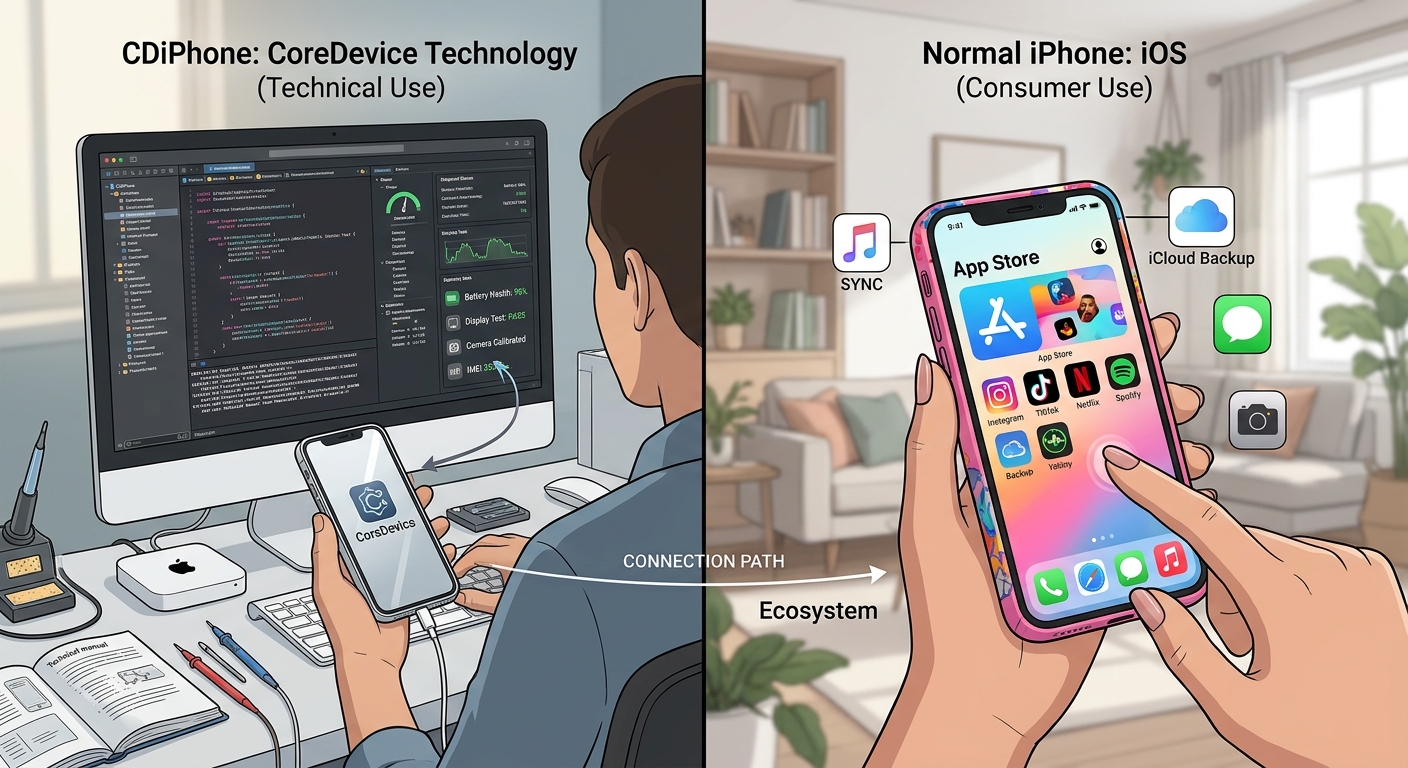
- Apple-related technical terminology: Some discussions associate similar wording with developer tools, device diagnostics, or older CDMA mobile technology.
These are separate subjects. None establishes CDiPhone as an official Apple device.
Can You Play Physical CDs Directly on an iPhone?
No. Standard iPhones do not include an optical CD or DVD drive.
A physical music CD needs compatible hardware to read its contents. An iPhone has no built-in mechanism for reading the information stored on a traditional optical disc.
That does not mean your old music collection is unusable.
You can use a computer with a CD or DVD drive to convert the tracks into digital audio files. Once imported, the music can be transferred to your iPhone through Apple’s supported music-management options.
The basic process looks like this:
- Insert your audio CD into a compatible computer drive.
- Import the songs into your computer’s music library.
- Connect your iPhone to the computer.
- Sync the selected music to your device.
- Open your music library on the iPhone.
If your computer does not have a built-in optical drive, a compatible external USB CD/DVD drive may be an option.
How to Transfer CD Music to an iPhone
You do not need a special CDiPhone application to move music from a physical disc to your smartphone.
Apple provides different music-management options depending on whether you use a Mac or Windows computer.
Method 1: Import CD Music Using a Mac
Mac users can use Apple’s Music app to import audio tracks from a physical CD.
You need:
- A Mac computer.
- A built-in or compatible external CD/DVD drive.
- An audio CD.
- Your iPhone and a compatible connection cable.
Follow these steps:
Step 1: Insert the audio CD
Connect your external optical drive if necessary, then insert the music CD into the drive.
Step 2: Open the Music app
Launch Apple’s Music app on your Mac. If the disc is recognized, it should appear in the sidebar under Devices.
Step 3: Import your songs
Select the CD and review its track list. You can choose which songs to import or select the option to import the entire disc.
Apple’s Music app uses AAC as its default import format, although you can change the import settings if you prefer another supported format.
Step 4: Wait for the import to finish
Once the tracks have been imported, they will appear in your music library. You can organize them into playlists or edit their song information.
Step 5: Connect your iPhone
Connect your iPhone to your Mac using a USB or USB-C cable. Open Finder and select your device in the sidebar.
Step 6: Sync your music
Use the music-syncing options to select the content you want on your iPhone. Apply the changes and wait for the transfer to finish.
Apple documents the CD-import process in its official Mac music import guide.
Method 2: Transfer CD Music Using Windows
Windows users can also move music from CDs to an iPhone.
The process involves importing the disc into a computer music library and using Apple’s device-management software to sync the songs.
You need:
- A Windows computer.
- A compatible CD/DVD drive.
- An audio CD.
- The Apple Music app.
- The Apple Devices app.
- Your iPhone and a compatible USB cable.
Follow these steps:
Step 1: Import the CD tracks
Insert the music CD into your computer’s optical drive.
Use a suitable music application to import the songs into your digital music library. Check the imported tracks before continuing to make sure the files play correctly.
Step 2: Install Apple’s device-management software
If you have not already installed it, get Apple Devices from the Microsoft Store.
Apple’s documentation explains that this application can manage supported Apple devices and synchronize music, videos, and other content.
Step 3: Connect your iPhone
Connect your iPhone to the Windows computer using a compatible USB or USB-C cable.
If your iPhone asks whether you trust the connected computer, follow the on-screen instructions.
Step 4: Open Apple Devices
Launch the Apple Devices app and select your iPhone from the sidebar.
Step 5: Select Music
Open the Music section and enable the option to sync music onto your device.
You can choose your entire music library or select particular artists, albums, genres, and playlists.
Step 6: Apply the changes
Select Apply and allow the synchronization process to finish.
Your selected music should now be available on your iPhone.
Apple explains the full process in its Windows music synchronization instructions.
Important: Apple Music subscribers should check their Sync Library settings before using manual music synchronization. Apple’s support documentation explains that subscription music and manually synced music have different synchronization requirements.
CDiPhone, CDMA iPhones, and CoreDevice: What Is the Difference?
Some articles connect CDiPhone with other Apple technologies. These connections can be misleading because the names refer to different things.
Understanding the differences helps you avoid confusing unrelated technical terms.
CDiPhone vs. CDMA iPhone
CDMA stands for Code Division Multiple Access. It is a mobile communication technology historically used by certain wireless carriers.
Some older iPhone models were manufactured with CDMA network compatibility. These devices are sometimes described as CDMA iPhones.
However, CDMA has nothing to do with compact discs or transferring music from a CD to an iPhone.
A CDMA-compatible iPhone is an actual category of older mobile hardware. CDiPhone is not an established Apple model name.
CDiPhone vs. Apple’s CoreDevice Framework
CoreDevice is a real Apple developer technology associated with managing and interacting with Apple devices through development tools.
It is not another name for CDiPhone.
Developers may encounter CoreDevice-related components when working with Apple’s development environment. Ordinary iPhone owners do not need these tools to import music or manage their everyday music libraries.
If a website claims that a CDiPhone download is an official CoreDevice application, check the claim against Apple’s developer documentation before installing anything.
What Are the Benefits of Transferring CD Music to an iPhone?
Although CDiPhone is not an official gadget, the idea of bringing physical music collections onto a smartphone has practical benefits.
Keep Older Music Collections Accessible
Many people still own albums that they purchased years ago. Some contain special editions, bonus tracks, or recordings that may be difficult to find through streaming services.
Importing those tracks gives you another way to access music you already own.
Listen Without an Internet Connection
Once compatible audio files are stored locally on your iPhone, you can listen without relying on a mobile data connection or Wi-Fi.
This is useful when travelling or when internet access is unreliable.
Organize Your Music Collection
Digital music libraries make it easier to organize albums, artists, and playlists.
Instead of searching through physical CD cases, you can use your phone’s music library to find particular recordings.
Keep a Separate Copy of Your Music
Importing CDs creates digital copies that can be stored in a computer music library and backed up.
Keeping an additional backup is sensible because a phone can be lost, damaged, or replaced.
However, importing music does not automatically create a complete backup. You should separately protect your computer’s music library and other important files.
Is CDiPhone Worth Your Attention?
That depends on what you are trying to accomplish.
If you are searching for a new Apple smartphone, CDiPhone is not a verified product worth adding to your shopping list.
There is no confirmed Apple release, official price, supported model list, or technical specification sheet for it.
If your interest is in using old CD collections on a modern iPhone, the underlying idea is useful. You can import your CDs using a computer and transfer the resulting music files through Apple’s supported applications.
You also do not need to purchase a special smartphone or subscribe to an additional service simply because a website uses the term CDiPhone.
For practical buying advice, start with our AI gadget buying checklist before spending money on unfamiliar products or accessories.
What Should You Check Before Trusting a CDiPhone Claim?
Unusual technology names can attract attention, especially when articles present them as newly discovered Apple products.
Before believing a claim, look for evidence that can be checked independently.
Consider these points:
- Official manufacturer information: Does Apple mention the product on its website or in its Newsroom?
- Verified specifications: Is there a real technical document listing the processor, display, battery, storage, and supported software?
- A genuine product listing: Is the device available through a recognizable manufacturer or authorized retailer?
- Independent confirmation: Are reputable technology publications reporting the same product information?
- Download safety: If a website offers a CDiPhone installer, can you establish who developed it and whether Apple officially supports it?
A professional-looking website or product image is not proof that a device exists.
The same approach applies when researching unfamiliar AI gadgets. Our guide to choosing AI-powered devices can help you assess product claims before making a purchase.
Final Thoughts
CDiPhone sounds like the name of a new Apple gadget, but there is no verified Apple product behind it. Its most practical connection is the use of physical CD music on modern iPhones.
If you own older music CDs, you do not need to wait for a new device or search for an unfamiliar application. A compatible computer, an optical drive, and Apple’s existing music-management tools are enough to get started.
Frequently Asked Questions About CDiPhone
What does CDiPhone mean?
CDiPhone is an informal term without a universally accepted technical definition. It is commonly associated with discussions about compact discs, iPhones, and transferring music between older physical media and modern smartphones.
Is CDiPhone an official Apple product?
No verified Apple product or iPhone model carries the official name CDiPhone. Apple has not published an official product specification or release announcement for a device with this name.
Can I play CDs directly on my iPhone?
No. Standard iPhones do not have built-in CD drives. You must use a compatible computer and optical drive to import the music before transferring the digital tracks to your phone.
Do I need a special CDiPhone application?
No. There is no verified official CDiPhone application required for transferring CD music. Mac users can use Apple’s Music app and Finder, while Windows users can use Apple Music and Apple Devices for supported music-import and synchronization workflows.
Is CDiPhone the same as a CDMA iPhone?
No. CDMA refers to a mobile network technology used by certain older phones. CDiPhone is an informal internet term, often associated with CDs and iPhone music transfers. The two terms describe different subjects.